Invoices
Making and editing invoices
Everything on the invoice form, from products and wording to VAT, COD and the COPY page, and how to correct an invoice.
Owners and Users can make and edit invoices. Bookkeepers can look at them but not change them, and order takers don’t see invoices at all. See What each role can do.
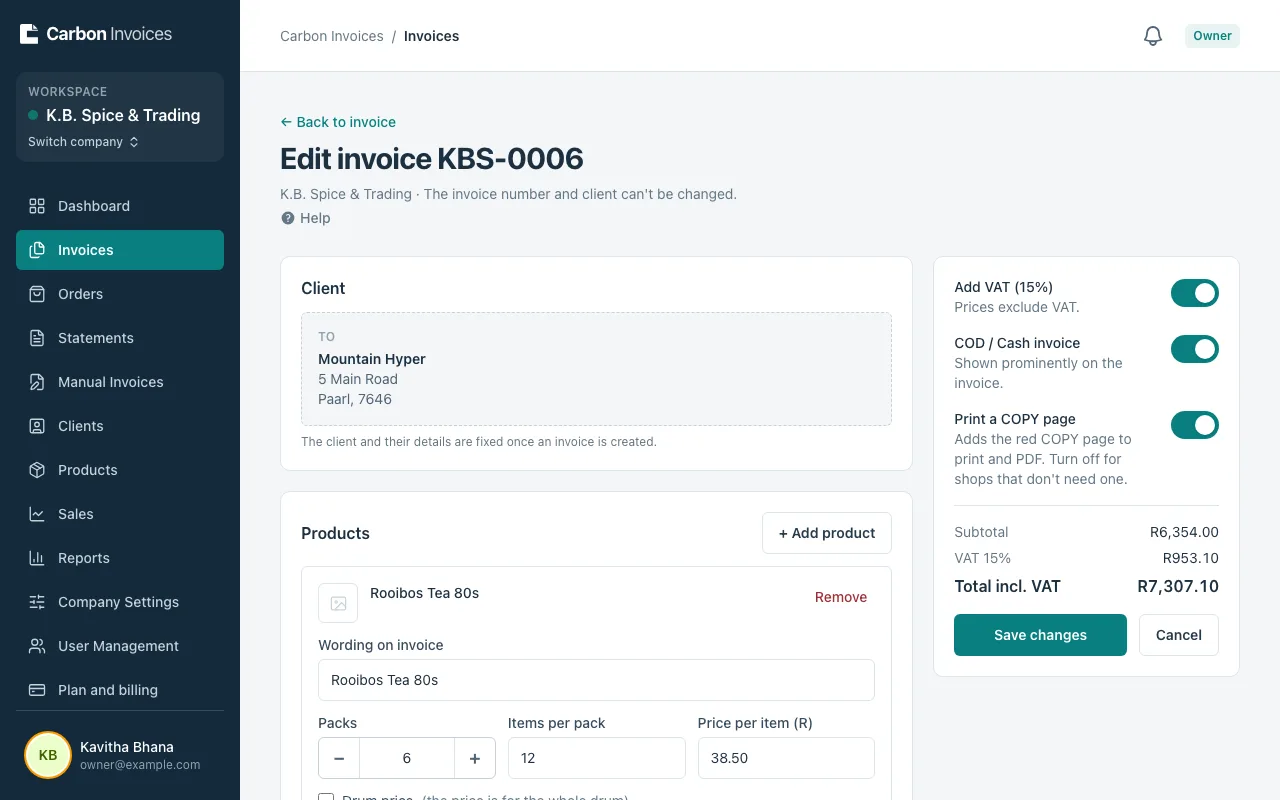
Making an invoice
- Open Invoices and choose New invoice.
- Choose the Client. The client and their details are fixed once the invoice is created.
- Under Products, add each product. For each line you can change:
- how many: Packs for products sold in packs, Quantity for single items,
- the Wording on invoice, for example a shorter name for this client,
- the Items per pack (products sold in packs only) and Price per item (R), for a one-off price,
- Whole-pack price, when the price is for the whole pack rather than each item (the price then reads Price per pack (R)).
- Under Details, check:
- Invoice date: today, unless you change it.
- Order number (optional): the client’s order or purchase number, printed on the invoice.
- Add VAT: only for VAT-registered companies. See VAT-registered or not.
- COD / Cash invoice: shown prominently on the invoice. Switch it off for invoices paid on account.
- Print a COPY page: adds a second page stamped COPY to print and PDF. See Print, PDF and the COPY page.
- Check the Subtotal and Total and choose Create invoice.
The invoice number is given when you save. Lines that aren’t complete aren’t counted; the form tells you which ones.
Starting from an order? Open the order and choose Create invoice: the client and products are filled in for you. See Ready for invoice, and invoicing an order.
Correcting an invoice
Open the invoice and choose Edit. Everything can be changed except the invoice number and the client. Choose Save changes when you’re done.
- To issue it to a different client, cancel it and choose Create replacement.
- If you’ve changed your company’s or the client’s details since, choose Refresh company & client details on the invoice to bring them up to date. Invoices otherwise keep the details from when they were saved.
- Cancelled invoices can’t be edited.