Orders
Taking an order
Write down what a client ordered and when it's needed, so it can be packed and invoiced later.
Orders are for work that’s invoiced later: a client phones or messages an order, someone packs it, and once it’s ready it becomes an invoice. Owners, Users and order takers can take orders; bookkeepers don’t see them.
- Open Orders and choose New order.
- Choose the Client.
- Ordered by: who placed the order, for example Thandi.
- Order date and Delivery date (optional): the delivery date is when the client needs it. Leave it empty for orders without a set day; those never show as due or overdue.
- Add the Products and how many packs of each. For products sold in packs, Items per pack starts at the product’s usual pack size; change it when the client wants a different size this time. The invoice made from the order uses the same pack size.
- Add Notes (optional), for example “Deliver to the back entrance”.
- Choose Save order. It gets the company’s next order number.
Finding orders
The tabs along the top show Open orders, those Ready for invoice, Invoiced, Cancelled and All. Search by client, who ordered or order number. Orders past their delivery date show Due today or how many days overdue they are.
Printing packing slips
On the Open tab, choose Print slips to print every open order in the list as packing slips, about ten to an A4 page. Each slip is a box with the client’s name, a tick box for each product, how many of each (for example “12 × 3 packs”: 3 packs of 12) and the order’s notes. Cut the slips apart and stick each one on its order’s goods before packing. Slips show no prices or client details, and printing doesn’t change the orders, so you can print again any time. A search or client filter limits the slips to the orders it shows.
Changing or cancelling an order
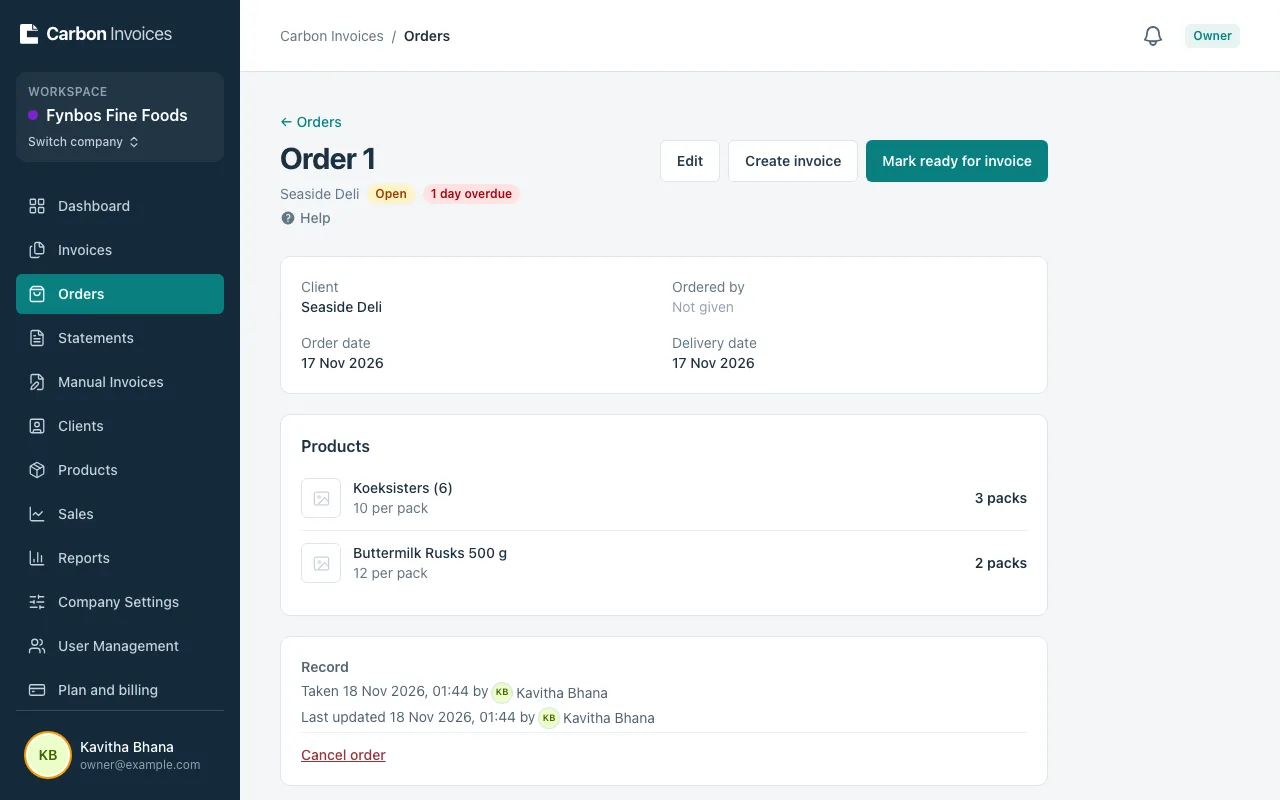
The order shows each product’s pack size, with the usual size in brackets when it was changed, for example “10 per pack (usually 12)”.
Open the order and choose Edit to change it while it’s open (choose Back to open first if it’s ready for invoice). Order takers can only edit orders they took themselves. Owners and Users can Cancel order with a reason: it stays in the list as cancelled and can’t be invoiced or changed afterwards.